
Saturday Scraplift: Etch A Sketch
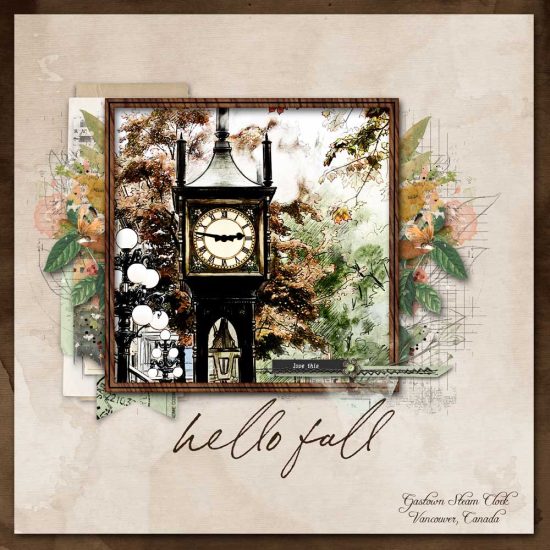
Shannon (shannonr) here with this week’s edition of Saturday Scraplift. This week we are featuring this beautiful layout by Jana. She used a technique described by Joanne (jcaruth910) which has been used by a few others on the Creative Team to create some pretty cool layouts. I have also seen and photographed this clock in Vancouver, BC and love the dreamy, watercolor feel she created with the photo effect she used.
This is how Joanne explained the technique: She used the contextual task bar in Photoshop to type in a prompt and it created a nice black and white sketch. She clipped the color photo to the sketch and added overlay blend mode to it. And then added a hard light blend mode to the sketch. She also left the color photo on the bottom layer to give it a bit more color.
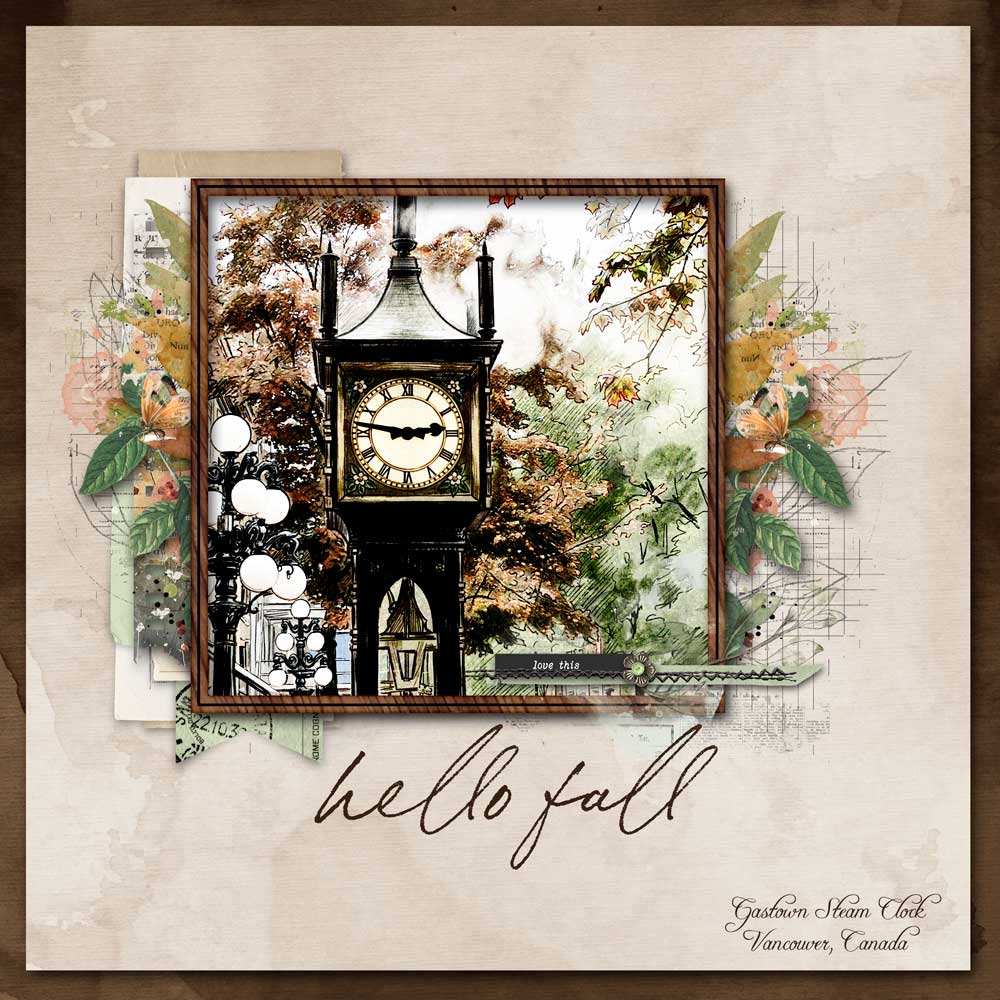
You don’t have to have Photoshop to create a similar effect on your photos. The Creative Team has come up with some additional examples using other techniques to help you lift this amazing layout.
I have Photoshop Elements so I wasn’t able to follow the exact instructions that Joanne outlined but I used some PSE techniques that came pretty close. I duplicated the photo twice to have a total of three photo layers. Like Joanne, I kept the bottom layer in color. The middle layer–I tried out various filters to see what would look the best and settled on the Graphic Pen filter using brown and white since those colors seemed to suit my photo better than black and white. I also added a hard light blend mode to the middle layer. The top layer-I added an overlay blend. I used a photo that I took in Dunblane Cathedral in Scotland a few years ago.
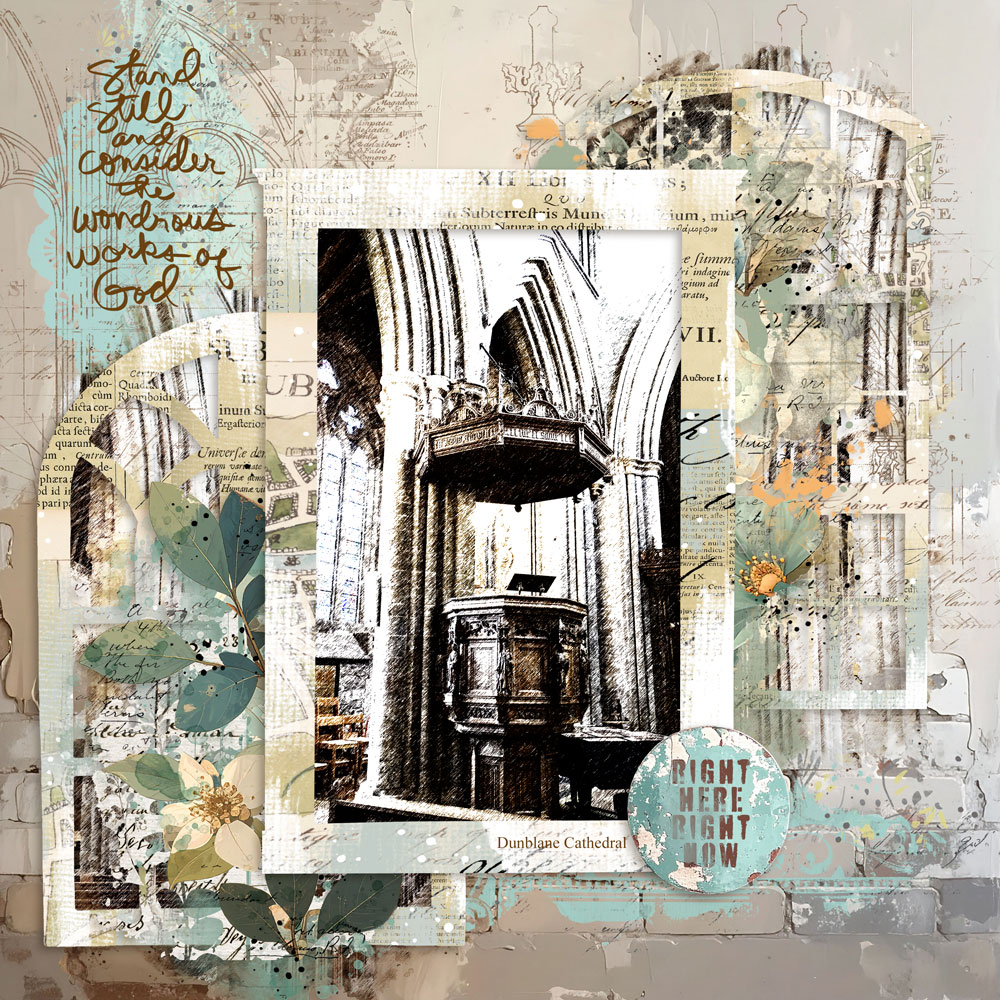
Products used: Darcy Gardens Painted Layers, Chippy Discs, Handdrawn Faith Brushes and Stamps 01, Chippy Botanist 03 Blends, Mixed Media Window Frames 01, ArchiBlend Clusters Brushes, Stamps and Layers 06 and Chippy Foundations Paper Pack 18.
Stacia also uses Photoshop Elements. She also chose one of the Sketch filters in PSE and followed Joanne’s instructions in a similar fashion that I did. Jana’s layout also inspired her to use an Abstracting Memories template because of the sketch like design of the template. This is what she was able to come up with.
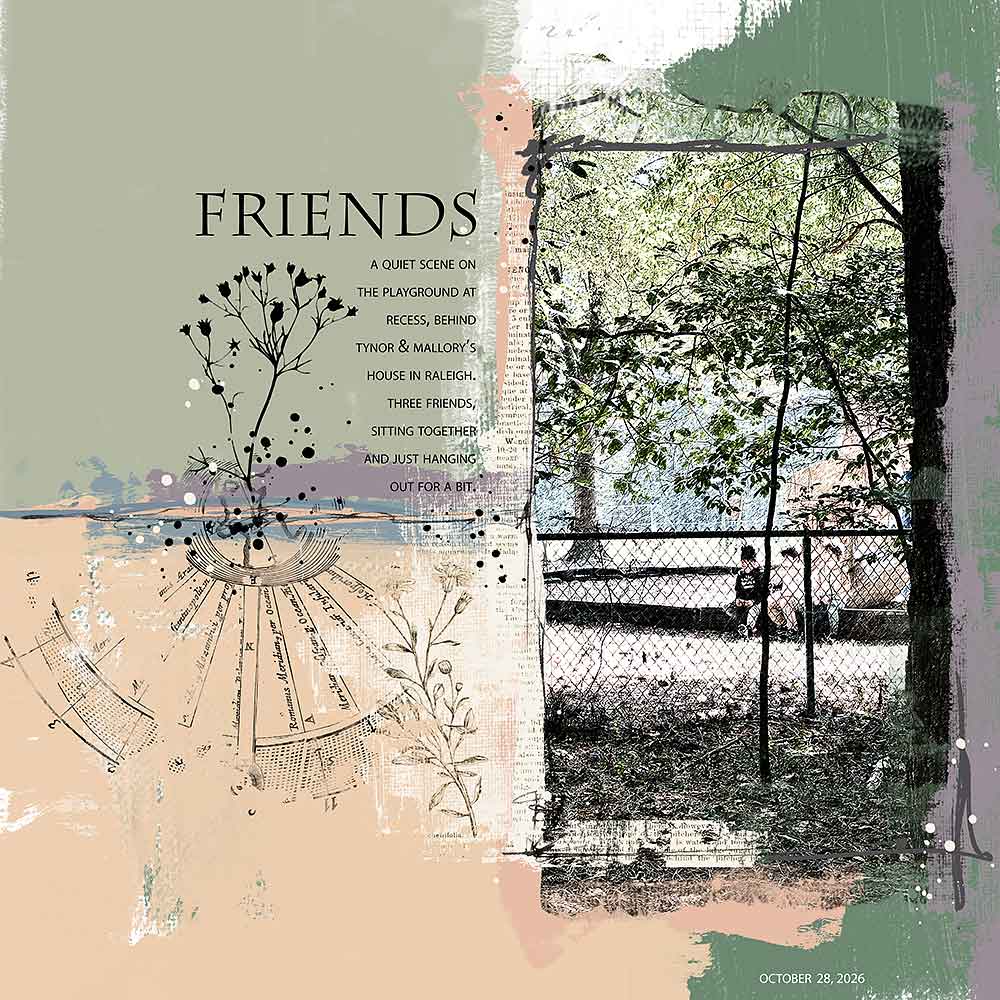
Products used: Abstracting Memories Layered Template 10 and Krafty Garden Simple Essentials Paper Pack.
Addie uses the Affinity app on her iPad to do her scrapbooking. She decided to download a free app called Prisma to create a sketch of her puppies. There are paid options, but she used a free filter called, “Thota Vaikuntam” and found it great fun to run her photos through the various options. This is what she came up with following Jana’s page design pretty closely as well. And isn’t it fun to see her adorable puppies at play!
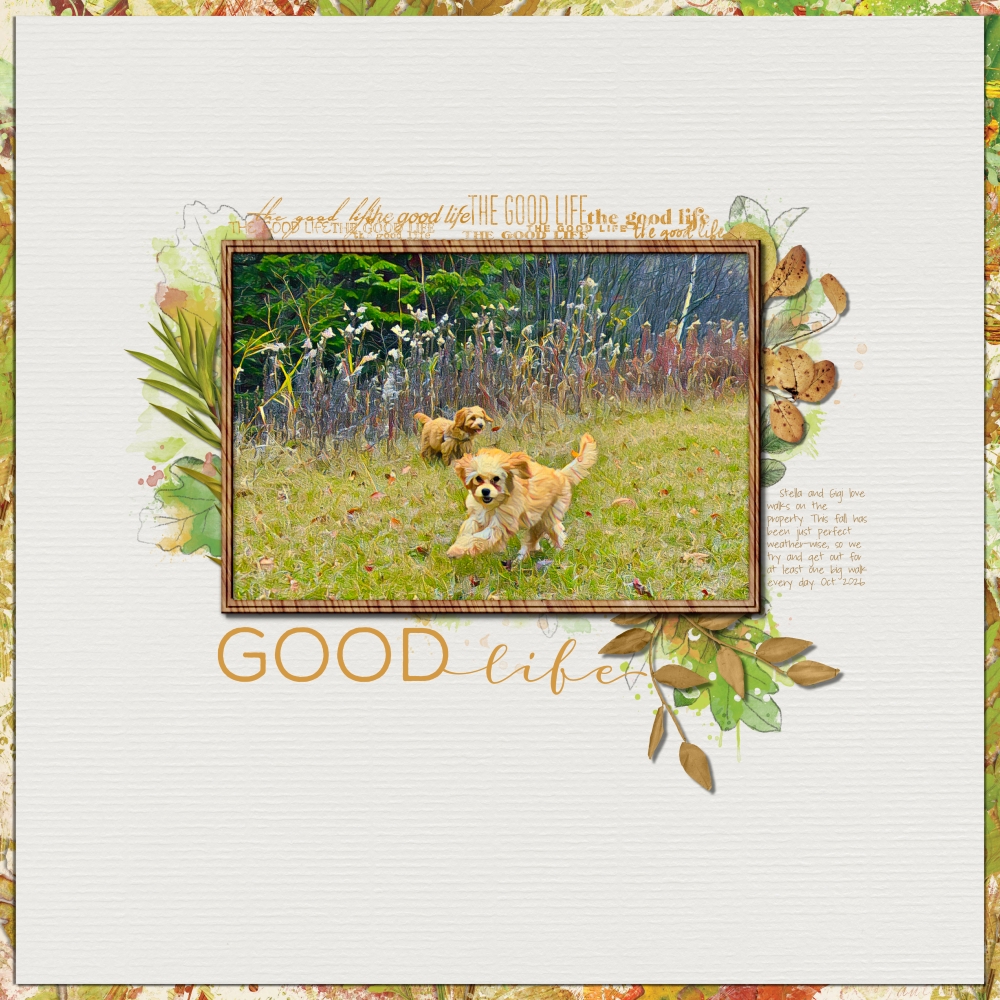
Products used: Wood Veneer Keylined Photo Frames 01, So Happy Brushes and Stamps 01, Watery Foliage 06, Worth Repeating Brushes and Stamps 28, Curated Branches 01, Curated Branches 03, Fall Flourish Paper Pack 01, and Textured Cardstock: Neutra Paper Pack.
Emily (Emma Leigh), who just came off her Guest Creative Team member stint, used Canva to create the sketch effect for her photo. She also offset it a bit to give it a risograph or mid-century postcard feel.
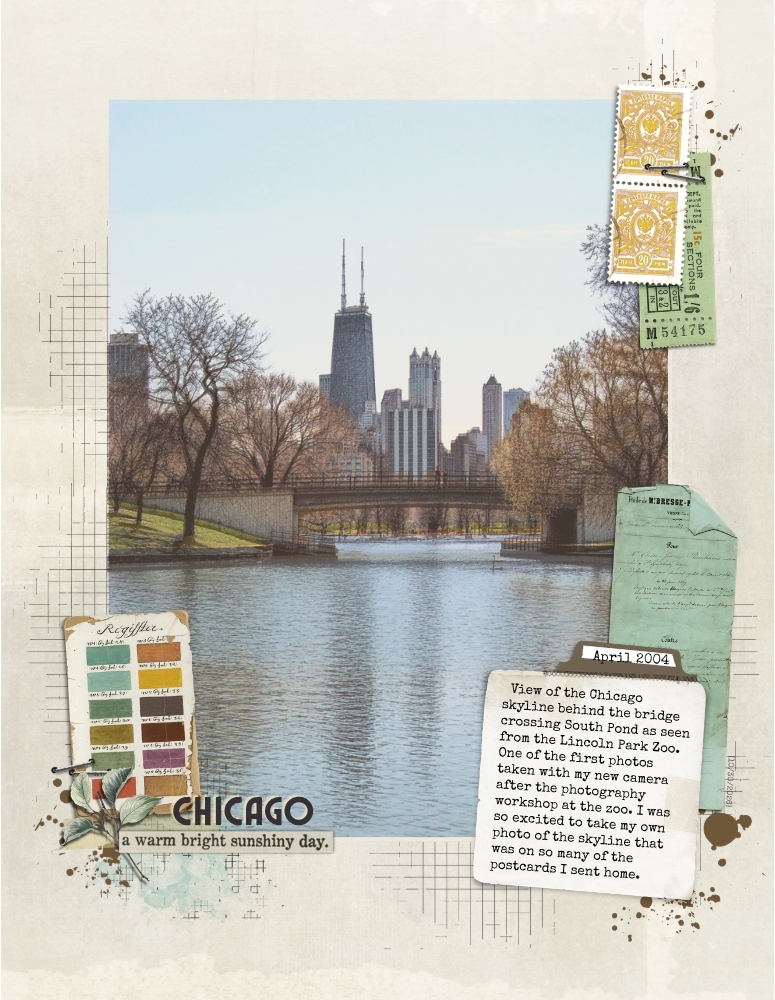
Products used: Layer Works 1144, Layer Works 2646, Ledger Grids 07 Stamp Pack and Waterworks Textures Paper Pack 01.
I hope that Jana’s layout as well as the additional examples will inspire you to create a sketch of your photo to create a page but you are welcome to take any inspiration from the layout to create your own page. I can’t wait to see what you are able to come up with.
As always–to get credit toward a coupon to use in the KPD store, upload your layouts to the Saturday Scraplift Gallery and the November Challenge Participation thread.
Happy Scrapping!
Shannon (shannonr)
Follow Us